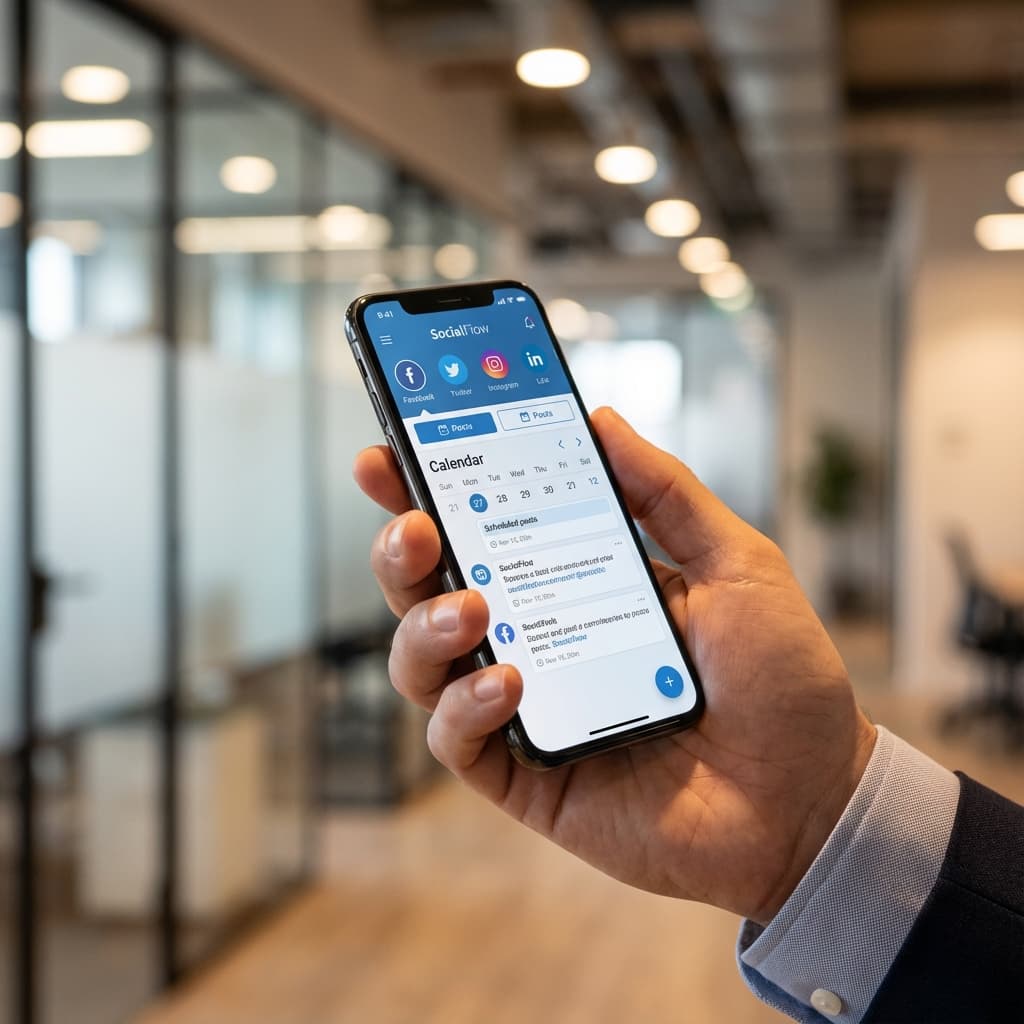
LinkedIn scheduling isn't rocket science, but it's also not as simple as clicking "schedule" and calling it a day.
Done right, scheduling lets you maintain consistent presence on LinkedIn without living on the platform. Done wrong, you're posting at 3 AM when your audience is asleep, wondering why engagement tanked.
This guide covers everything: native LinkedIn scheduling, third-party tools, optimal times, and strategies that actually work in 2026.
Why Schedule LinkedIn Posts?
Before diving into the how, let's address the why. Three compelling reasons:
1. Consistency Wins on LinkedIn
LinkedIn's algorithm rewards regular posting. Accounts that post 2-4 times weekly see 2x the engagement of sporadic posters. But "regular" requires discipline, or scheduling.
2. Professional Time Management
LinkedIn is a business network. Your audience expects professional content during business hours, not midnight brain dumps. Scheduling lets you write when inspired but publish when optimal.
3. Strategic Campaign Coordination
Product launches, thought leadership campaigns, and content series require coordinated timing. Scheduling ensures posts go live exactly when planned, not "whenever you remember."
Method 1: Native LinkedIn Scheduling (Free)
LinkedIn offers built-in scheduling for personal profiles and company pages. It's free but limited.
How to Schedule Posts on LinkedIn (Desktop)
Step 1: Create Your Post
- Go to LinkedIn.com and sign in
- Click "Start a post" at the top of your feed
- Write your post content (up to 3,000 characters)
- Add images, documents, or polls as needed
Step 2: Access Scheduling
- Look for the clock icon at the bottom right of the composer
- Click the clock icon to open scheduling options
- If you don't see it, update your LinkedIn app/browser
Step 3: Choose Date and Time
- Select the date (up to 3 months in advance)
- Choose the hour and minute
- Note: Time is in your local timezone
- Click "Next" or "Schedule"
Step 4: Confirm and Review
- LinkedIn shows a preview of your scheduled post
- You'll see: "Your post is scheduled for [date/time]"
- Click "Done" to finalize
Finding Your Scheduled Posts:
- Click your profile picture → View Profile
- Scroll down to "Activity"
- Click "Posts" tab
- Scheduled posts appear with a clock icon
How to Edit or Delete Scheduled Posts
To Edit:
- Go to your scheduled posts (Activity → Posts)
- Click the three dots on the scheduled post
- Select "Edit scheduled post"
- Make changes and click "Update"
To Delete:
- Find the scheduled post
- Click three dots → "Delete scheduled post"
- Confirm deletion
Limitations of Native Scheduling
While free, LinkedIn's native scheduling has drawbacks:
❌ One post at a time: Can't bulk schedule ❌ No cross-posting: Must schedule separately for each LinkedIn profile/page ❌ Limited to 3 months: Can't plan further ahead ❌ No draft management: Draft posts aren't organized ❌ No analytics: Can't track scheduled post performance ❌ No optimal time suggestions: You guess best posting times
Best for: Occasional LinkedIn users who post 1-2x weekly and don't manage multiple accounts.
Method 2: Third-Party Scheduling Tools (Recommended)
For serious LinkedIn marketing, third-party schedulers offer crucial features LinkedIn doesn't.
Top LinkedIn Schedulers Compared
| Tool | Price | Key Feature | Best For |
|---|---|---|---|
| Broadr | $29/mo | AI content generation | Small businesses |
| Buffer | $12-120/mo | Simple interface | Solo users |
| Hootsuite | $99+/mo | Enterprise features | Agencies |
| Sprout Social | $249/mo | Advanced analytics | Large brands |
How to Schedule with a Third-Party Tool (Step-by-Step)
Most scheduling tools follow a similar workflow. Here is the general process:
Step 1: Connect Your LinkedIn Account
- Sign up for your chosen scheduling tool
- Locate the "Connect Account" or "Add Profile" button
- Authorize the tool to access your LinkedIn account
Step 2: Create Your Post
- Open the "Create Post" or "Composer" window
- Select LinkedIn as the destination platform
- Write your post content
- Pro tip: Many modern tools include AI assistants to help generating ideas or optimizing tone.
Step 3: Add Media
- Upload images (recommended: 1200×627px for LinkedIn)
- Add documents (PDFs) or links
- Check the preview to ensure everything looks right
Step 4: Schedule Your Post
- Instead of "Post Now," select "Schedule"
- Choose your date and time from the calendar
- Pro tip: Look for "Optimal Time" suggestions based on your specific audience data.
Step 5: Review
- Verify the timezone and date
- Confirm the post
- It now appears in your content calendar dashboard
Managing Scheduled Posts:
- View upcoming posts in a visual calendar
- Drag-and-drop to reschedule if priorities change
- Edit content before it goes live
Benefits of Third-Party Tools
✅ Bulk scheduling: Schedule 20 posts in 30 minutes ✅ Multi-account: Manage personal + company pages ✅ Content calendar: See entire strategy at a glance ✅ AI assistance: Generate ideas and optimize content ✅ Analytics: Track what content performs best ✅ Queue management: Set posting slots, auto-fill with content ✅ Team collaboration: Get approval before posts go live
Best Times to Post on LinkedIn (2026 Data)
Timing matters. Post when your audience is active, not when you're available.
Overall Best Times
Based on millions of LinkedIn posts analyzed in 2025-2026:
Best Days:
- Tuesday (highest engagement)
- Wednesday
- Thursday
Best Times:
- 7-9 AM (commute/morning coffee scroll)
- 12-1 PM (lunch break)
- 5-6 PM (after-work wind-down)
Worst Times:
- Weekends (B2B audience offline)
- Early mornings (before 6 AM)
- Late evenings (after 9 PM)
Industry-Specific Optimal Times
Your audience matters more than general trends:
B2B/Professional Services:
- Tuesday-Thursday, 8-10 AM
- Reason: Decision-makers check LinkedIn with morning coffee
Marketing/Creative:
- Monday-Friday, 12-2 PM
- Reason: Creative professionals browse during lunch
Tech/Startups:
- Tuesday-Thursday, 7-9 AM
- Reason: Tech workers are early risers, check LinkedIn before Slack
Recruiting/HR:
- Monday-Thursday, 8 AM-12 PM
- Reason: Hiring managers review candidates in morning
C-Suite Executives:
- Tuesday-Thursday, 7-8 AM
- Reason: Busy schedules, brief morning check-ins
How to Find YOUR Best Times
Generic data is useful, but YOUR audience's behavior matters most.
Method 1: LinkedIn Analytics
- Go to your profile → Analytics tab
- Check "Follower demographics"
- Note when followers are most active
- Schedule posts 30 minutes before peak times
Method 2: Test and Track
- Post at different times for 2 weeks
- Track engagement rate (likes + comments / impressions)
- Identify patterns in top-performing posts
- Double down on winning times
Method 3: Use AI Recommendations Tools like Broadr analyze your past performance and suggest optimal times automatically.
What to Schedule on LinkedIn (Content Types)
Not all content performs equally. Here's what works in 2026:
1. Text-Only Posts (Highest Engagement)
Contrary to popular belief, plain text posts often outperform image posts on LinkedIn.
Why they work: LinkedIn's algorithm favors content that keeps users on-platform. Text posts don't tempt users to click away.
What to post:
- Personal stories and lessons learned
- Industry insights and hot takes
- Thought leadership perspectives
- Question posts to drive comments
Example structure:
Hook (1-2 lines that grab attention)

Body (3-5 paragraphs with insights)

Call-to-action (ask a question to drive comments)
Scheduling tip: Schedule 2-3 text posts weekly for consistent thought leadership.
2. Document Posts (High Reach)
LinkedIn promotes document posts aggressively because users stay to read.
Best documents:
- PDF guides and checklists
- Slide decks with insights
- Industry reports
- Visual how-tos
Scheduling tip: Create documents in batches (5-10), schedule 1 per week.
3. Video Posts (Best for Awareness)
Native video gets 5x more engagement than YouTube links.
Video types that work:
- Tips and tutorials (60-90 seconds)
- Behind-the-scenes company culture
- Customer testimonials
- Industry commentary
Scheduling tip: Upload video directly to LinkedIn, add captions, schedule for peak times.
4. Image Posts (Solid Performance)
Images still work, but less than text-only in 2026.
Best images:
- Infographics with insights
- Quotes over branded backgrounds
- Charts and data visualizations
- Before/after comparisons
Scheduling tip: Use images to break up text posts in your calendar.
5. Polls (High Engagement)
Polls drive comments and boost reach.
Poll best practices:
- 2-4 answer choices maximum
- Ask debatable questions (not obvious ones)
- Run for 3-7 days
- Comment with your own answer to start discussion
Scheduling tip: Schedule polls on Mondays to gather votes throughout the week.
Content Mix Strategy
Don't post the same type repeatedly. Mix it up:
Weekly Schedule Example:
- Monday: Question post (text)
- Tuesday: Industry insight (text + image)
- Wednesday: Document post (PDF guide)
- Thursday: Poll
- Friday: Video tip
LinkedIn Scheduling Best Practices
1. Write Like a Human, Not a Corporation
LinkedIn isn't Instagram. Authenticity beats polish.
Bad: "We're excited to announce our Q4 results have exceeded expectations..." Good: "Honest take: I thought we'd miss our target this quarter. Here's what saved us..."
2. Hook Them in Line 1
LinkedIn truncates posts after ~140 characters. Your first line must compel clicks.
Weak hook: "In today's business environment, it's important to..." Strong hook: "I just lost a $50k client. Here's what I learned..."
3. Use Line Breaks Strategically
Wall-of-text posts get skipped. Break it up:
Bad:
Leadership isn't about having all the answers. It's about asking the right questions. Great leaders create environments where their teams feel safe to experiment, fail, and learn. They don't micromanage, they empower.
Good:
Leadership isn't about having all the answers.

It's about asking the right questions.

Great leaders create environments where their teams feel safe to:
→ Experiment
→ Fail
→ Learn

They don't micromanage.

They empower.
4. Hashtags: Less is More
LinkedIn allows 30 hashtags. Don't use 30.
Optimal: 3-5 relevant hashtags Where: End of post, not sprinkled throughout Which ones: Mix of broad and niche
Example: #Marketing #B2BMarketing #ContentStrategy
5. Tag Strategically
Tag people/companies mentioned in your post, but don't overdo it.
✅ Good tagging:
- People you interviewed or quoted
- Companies whose content you're commenting on
- Partners in a collaboration
❌ Bad tagging:
- Random influencers hoping for reach
- 10+ tags to "boost" visibility
- Companies you're criticizing (they get notified)
6. Engage Immediately After Publishing
LinkedIn's algorithm watches early engagement (first 60-90 minutes).
Schedule strategy:
- Schedule post for 8 AM
- Set calendar reminder for 8:05 AM
- At 8:05, check post and reply to first comments
- Spend 10 min engaging to boost algorithm signals
This defeats scheduling's purpose if done manually. Better: Use a tool that lets teammates or VAs monitor scheduled posts.
7. Repurpose High-Performers
If a post crushed it 3 months ago, schedule an updated version.
Repurposing strategy:
- Check analytics for top 5 posts of last quarter
- Rewrite with fresh angle or updated data
- Schedule for similar day/time as original
- Often performs as well or better
8. Create a Content Bank
Don't schedule last-minute. Build a library of evergreen content.
Content bank structure:
- 10-15 evergreen posts (always relevant)
- 5-10 timely posts (industry news, trends)
- 5 personal stories (authentic connection)
Schedule evergreen content when you have gaps in your calendar.
Common LinkedIn Scheduling Mistakes
Mistake #1: Scheduling and Forgetting
You schedule a post but don't engage with comments. The algorithm notices and limits reach on future posts.
Fix: Set reminders to check scheduled posts 1-2 hours after they go live.
Mistake #2: Over-Scheduling
Posting 3x daily on LinkedIn annoys your audience. This isn't Twitter.
Fix: Stick to 2-5 posts weekly maximum. Quality >> quantity on LinkedIn.
Mistake #3: Ignoring Timezone
You schedule for "10 AM" but forget your audience is in a different timezone.
Fix: Use tools that show timezone clearly. When in doubt, use major timezones (EST, PST).
Mistake #4: No Visual Variety in Calendar
Looking at your content calendar reveals 15 text posts in a row.
Fix: Visual calendar view helps spot monotony. Mix post types.
Mistake #5: Scheduling During Holidays
Memorial Day post about B2B sales tips? Your audience isn't working.
Fix: Mark holidays in your calendar, skip those days or post light content.
Advanced LinkedIn Scheduling Strategies
Strategy 1: The 3-2-1 Posting Framework
3x weekly: Core thought leadership content 2x monthly: Company updates or promotions 1x monthly: Vulnerable/personal story
This balance maintains trust while achieving business goals.
Strategy 2: Engagement Bait (Done Right)
Posts designed to drive comments boost reach, but don't be sleazy.
Ethical engagement posts:
- "What's one thing you wish you knew before [X]?"
- "Hot take: [controversial industry opinion]. Agree or disagree?"
- "Drop your best [tip/tool/resource] in the comments"
Strategy 3: Content Series
Schedule related posts as a series to build anticipation.
Example: "5 Days of LinkedIn Growth Hacks"
- Monday: Hook announcement
- Tuesday-Friday: One hack per day
- Following Monday: Results roundup
Strategy 4: Repurpose YouTube/Podcast Content
Turn long-form content into 5-10 LinkedIn posts.
Process:
- Record podcast episode or YouTube video
- Pull out 5-7 key insights or quotes
- Turn each into a standalone LinkedIn post
- Schedule 1-2 per week over a month
- Link back to full content in comments
Strategy 5: Quarterly Campaign Scheduling
Plan entire quarters at once.
Example Q1 LinkedIn Campaign:
- January: Brand awareness (thought leadership)
- February: Lead generation (resource offers)
- March: Sales enablement (case studies)
Schedule all posts at quarter-start, adjust as needed.
Tools and Resources
Best LinkedIn Scheduling Tools
For small businesses: Broadr ($29/mo)
- Unlimited posts and accounts
- AI content generation
- Simple interface
For solo creators: Buffer ($12/mo)
- Clean interface
- Good for 1-2 accounts
For agencies: Hootsuite ($99+/mo)
- Client management
- Approval workflows
LinkedIn Analytics Tools
Native LinkedIn Analytics (Free)
- Basic metrics for profiles and company pages
Broadr Analytics
- Track engagement trends
- Best time recommendations
- Content performance comparison
Sprout Social ($249/mo)
- Detailed competitor analysis
- Custom reports
Content Creation Tools
For writing:
- AI Writing Tools (generate ideas, optimize posts)
- Grammarly (grammar check)
- Hemingway (readability)
For images:
- Canva (graphics and templates)
- Unsplash (free stock photos)
- RemoveBG (background removal)
For videos:
- Descript (video editing + captions)
- Loom (quick screen recordings)
- CapCut (mobile video editing)
Getting Started: Your 7-Day LinkedIn Scheduling Plan
Day 1: Setup
- Choose your scheduling tool
- Connect LinkedIn account
- Identify your best posting times
Day 2-3: Content Creation
- Write 5-7 posts
- Gather/create images
- Prepare documents
Day 4: Bulk Schedule
- Schedule 2 weeks of content
- Vary post types and times
- Review calendar for balance
Day 5-7: Monitor and Engage
- Check scheduled posts after they publish
- Reply to comments within 1-2 hours
- Track which posts perform best
Week 2 and beyond:
- 1 hour weekly to schedule next week's content
- 15 min daily to engage with comments
- Monthly review of analytics to optimize
Final Thoughts
Scheduling LinkedIn posts isn't about automation, it's about optimization. You're not removing the human element; you're allocating your time better.
Manual posting: Scattered, inconsistent, stressful Smart scheduling: Strategic, consistent, sustainable
The goal isn't to "set and forget." It's to plan strategically, execute consistently, and engage meaningfully.
Ready to level up your LinkedIn game?